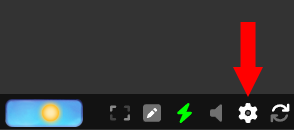
# Open the settings window by clicking on the gears icon [[Image:DisplayOptionsStatus.png|frame]] in the lower right-hand corner of the client.
# Open the settings window by clicking on the gears icon [[Image:OpenSettings.png|frame]] in the lower right-hand corner of the client.
# Click on the Buttons tab.
# Click on the Buttons tab.
# Select the F-Key you want to change.
# Select the F-Key you want to change.
Revision as of 18:22, 23 May 2023
The section beneath the main output consists of several items. It contains gauges for displaying basic character info. The information varies based on the game world but will typically include basic stats like health and mana. There is an avatar which can be customized. This section of the client holds a row of buttons which may be activated via mouse click or by using an F button. Most importantly there is the command line, where you type commands into the game.
Here is a sample image of what this area looks like in the client.
All of the Iron Realms games vary slightly in the information displayed here. Some have more gauges and all will customize the button commands for new characters based on their class.
Reprogram the F-Keys
Open the settings window by clicking on the gears icon in the lower right-hand corner of the client.
Click on the Buttons tab.
Select the F-Key you want to change.
Alter it to what you want.
Use @tar to substitute for the target you'd typically use. So to make KICK kick your current target, you would put in kick @tar.
Label the button whatever you want in the Text field.
Ignore the 'Script' field for now.
Note that you can also change how many F-Keys you have here.
[Achaea only]: If you put a command from Battlerage on an f-key, it will highlight automatically when you have enough Rage and it's not in cooldown.
Note: You can get more information on the 3.0_settings page.
Toggle f-keys, gauges, and avatar
File:SettingsButtons 01.png In order to turn off any of the gauges, buttons, or avatar elements in the client:
Open your settings by clicking on the gear icon in the bottom right of the client.
Click on "Display Options".
In "Display Elements" you will see toggles for Gauges, Buttons, Avatar, and Balances. Turn them on/off as desired.